Guild Guides
Practical how-tos for HYDRA members. We play on a server with a large Chinese-speaking population, so the two guides below cover reading and translating Chinese chat in-game: installing the WoW Translator addon, and getting Chinese characters and player names to render correctly.
Content adapted from the community guides by Nilla at ambershire.com/guides. Technical steps and download links are preserved; re-verify links if an addon has since updated.
WoW Translator Addonread & translate chat
What it is
WoW Translator lets you translate in-game text on the fly, which is invaluable on a Chinese-population server where a lot of chat, guild recruitment, and trade goes by in Chinese. It ships as an addon folder plus a small .dll helper. A few different builds float around and not all of them work, so use the trusted release linked below.
- Download the latest release. Grab it from the official repo: github.com/paokkerkir/wow-translate/releases (the v1.2 release link redirects to the current version, currently v1.3).
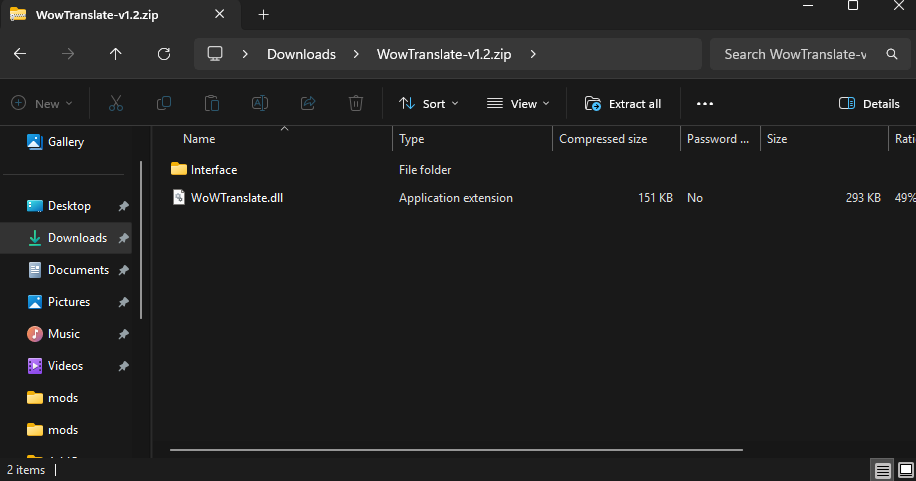
- Open the downloaded zip from your Downloads folder. Inside you will see an
Interfacefolder and a.dllfile. It should look like this:
- Copy both into your WoW folder. Highlight the
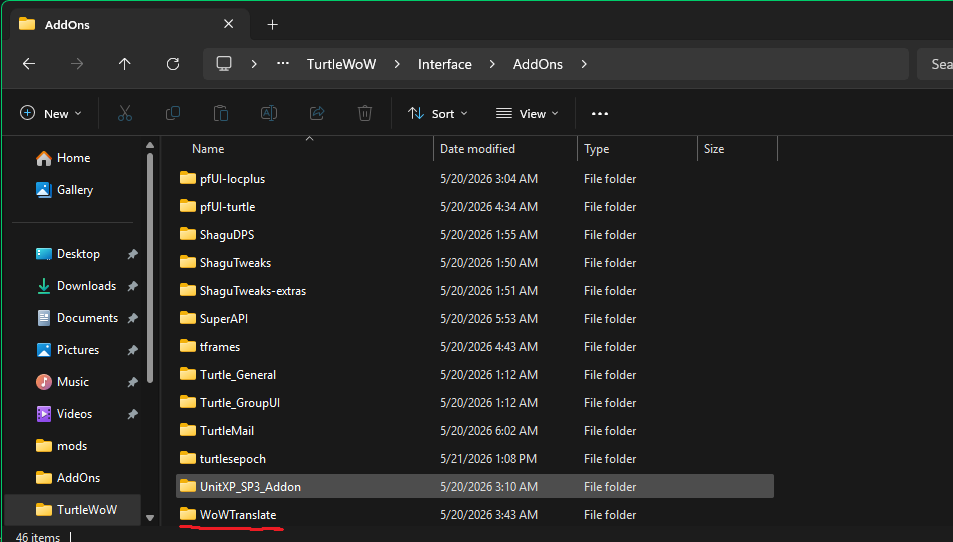
Interfacefolder and the.dllfile together, then drop them into your TurtleWoW install folder -- the same place that holds your launcher and yourInterface/AddOnsfolder. This merges the files into the right places without overwriting anything you already have. When done, your WoW folder contains the.dll, and the addon sits underInterface/AddOns.
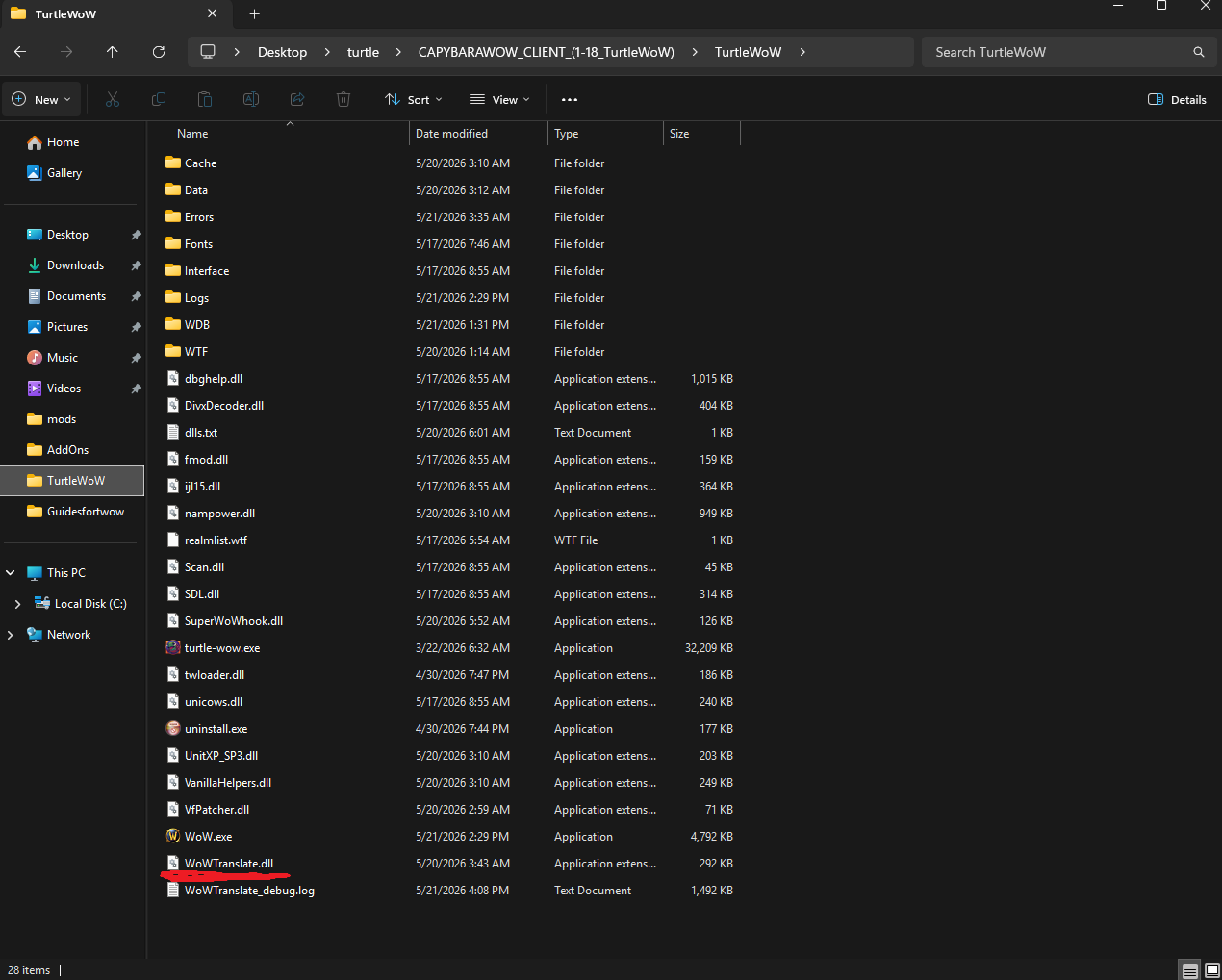
Main folder view -- the .dll now sits alongside your launcher.
And this is what your Interface > AddOns folder should contain:
- Launch the game and confirm the translator loads. If it works right away, you are done -- enjoy.
Many community .dll files get flagged by Windows Defender by default. Two fixes, easiest first:
- Allow the blocked file. Right-click the
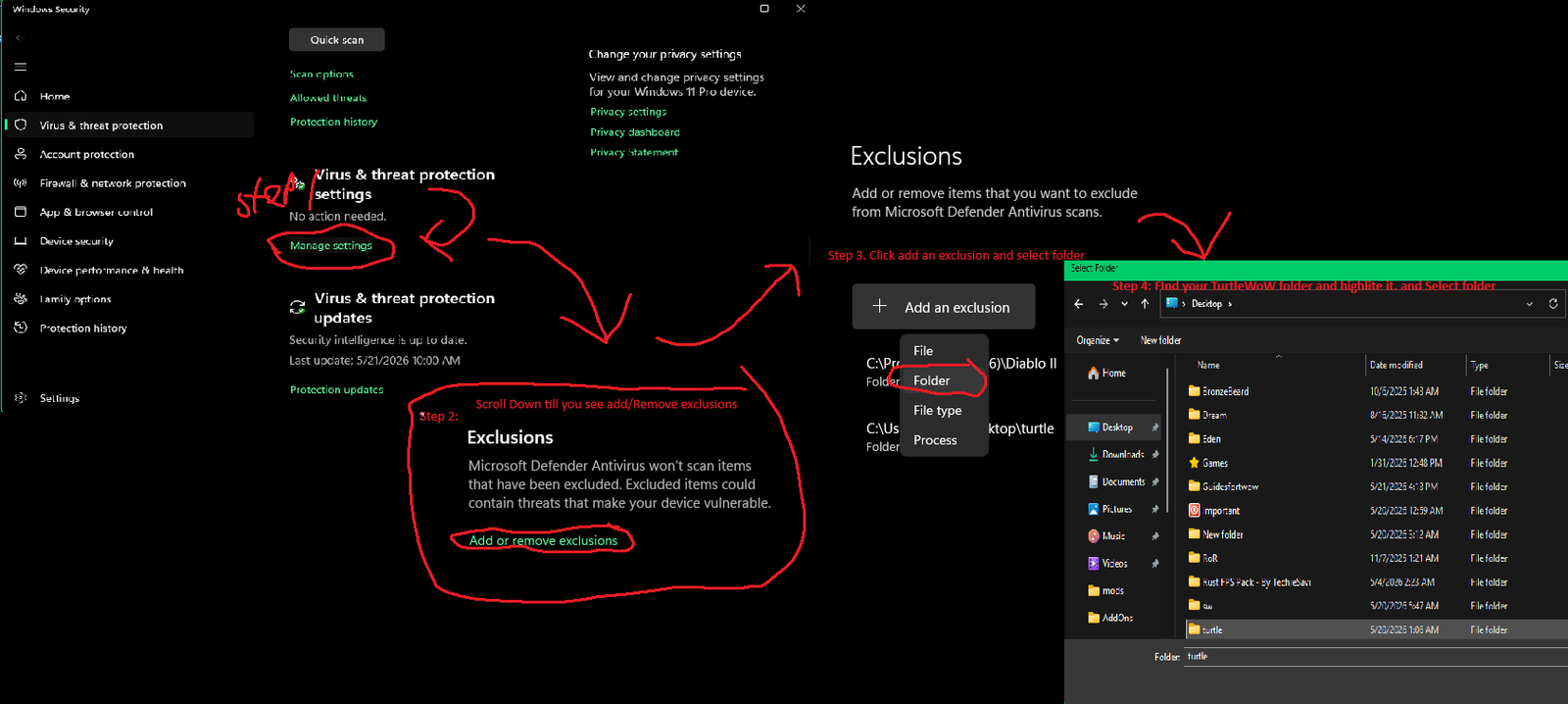
.dllin your WoW folder, choose Properties, and near the bottom of the General tab check the Unblock / Allow box, then Apply. This stops Defender from quarantining it. - Exclude the WoW folder (last resort). If Defender keeps deleting the file, add your TurtleWoW folder as an exclusion:
Windows Security > Virus & threat protection > Manage settings > Add or remove exclusions > Add an exclusion > Folder, then pick your TurtleWoW folder.
Seeing In-Game Chinese Lettersfix the ??? boxes
The problem
By default the vanilla client renders Chinese characters as empty boxes or question marks, so Chinese chat and player names are unreadable. The fix is to give the client a font that contains the Chinese glyphs. Pick one of the two methods below.
- Download the replacement Fonts.MPQ: drive.proton.me/urls/BA5XR49EV4
- Back up your original
Fonts.MPQfrom theDatafolder inside your WoW directory (rename or copy it somewhere safe). - Drop the downloaded
Fonts.MPQinto theDatafolder, replacing the original. - Set it read-only. Right-click the new
Fonts.MPQ, open Properties, and tick Read-only so the launcher doesn't overwrite it on update.
- Download the alternative font pack: Fonts_alt.7z (MediaFire)
- Extract the four
.TTFfiles into aFontsfolder in your base WoW directory. If there is noFontsfolder, just create one.
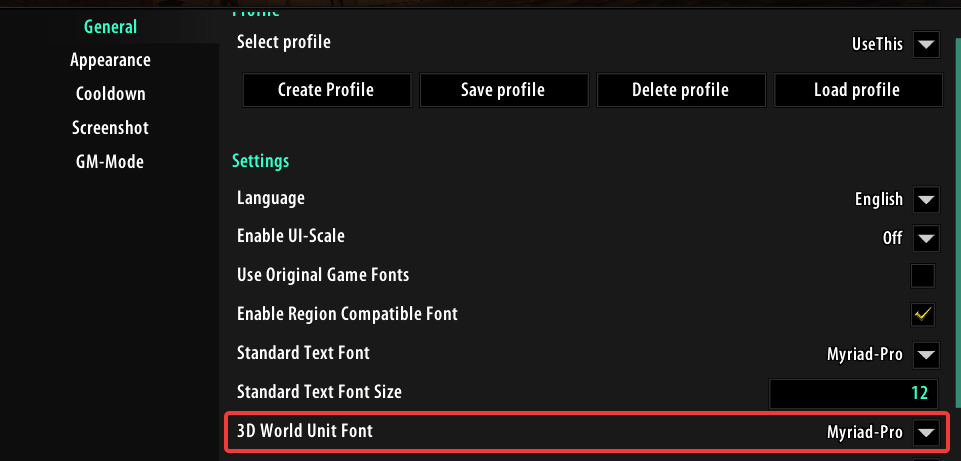
pfUI sets its own fonts, so you also need to point it at the Chinese-capable fonts or names and tooltips will still break:
- Add the
FRITZQTfont to the pfUI fonts folder.
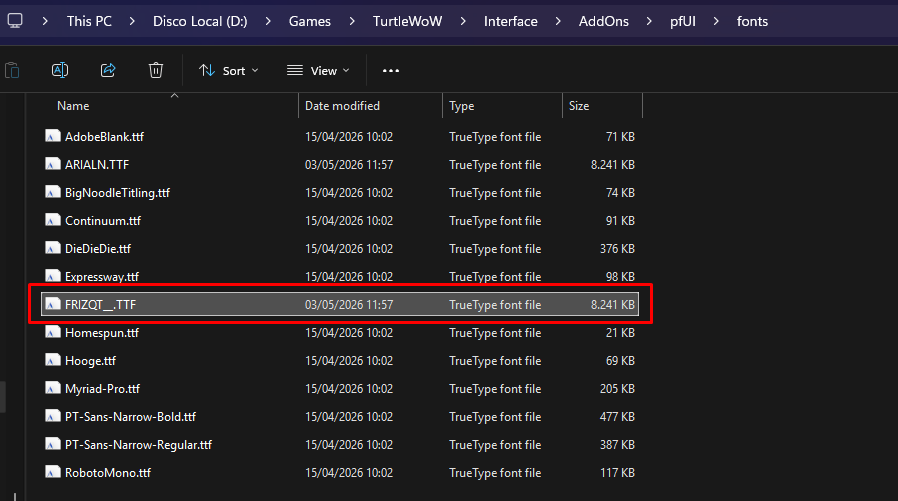
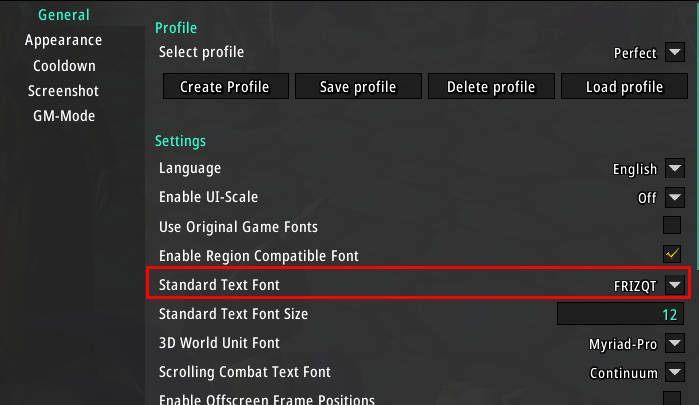
- In pfUI > General Settings, set
FRITZQTas the Standard Text font.
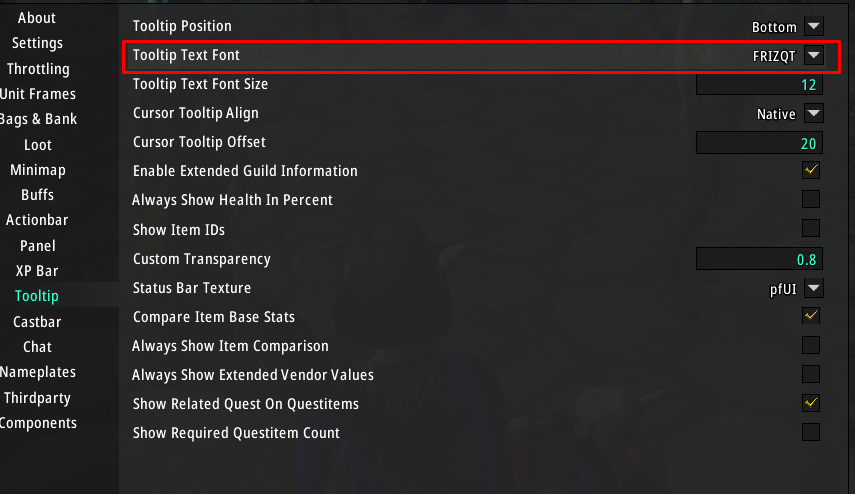
- In pfUI > Tooltip Settings, set
FRITZQTas the Tooltip Text font.
- Set the 3D World Unit Font to
ARIALN.